
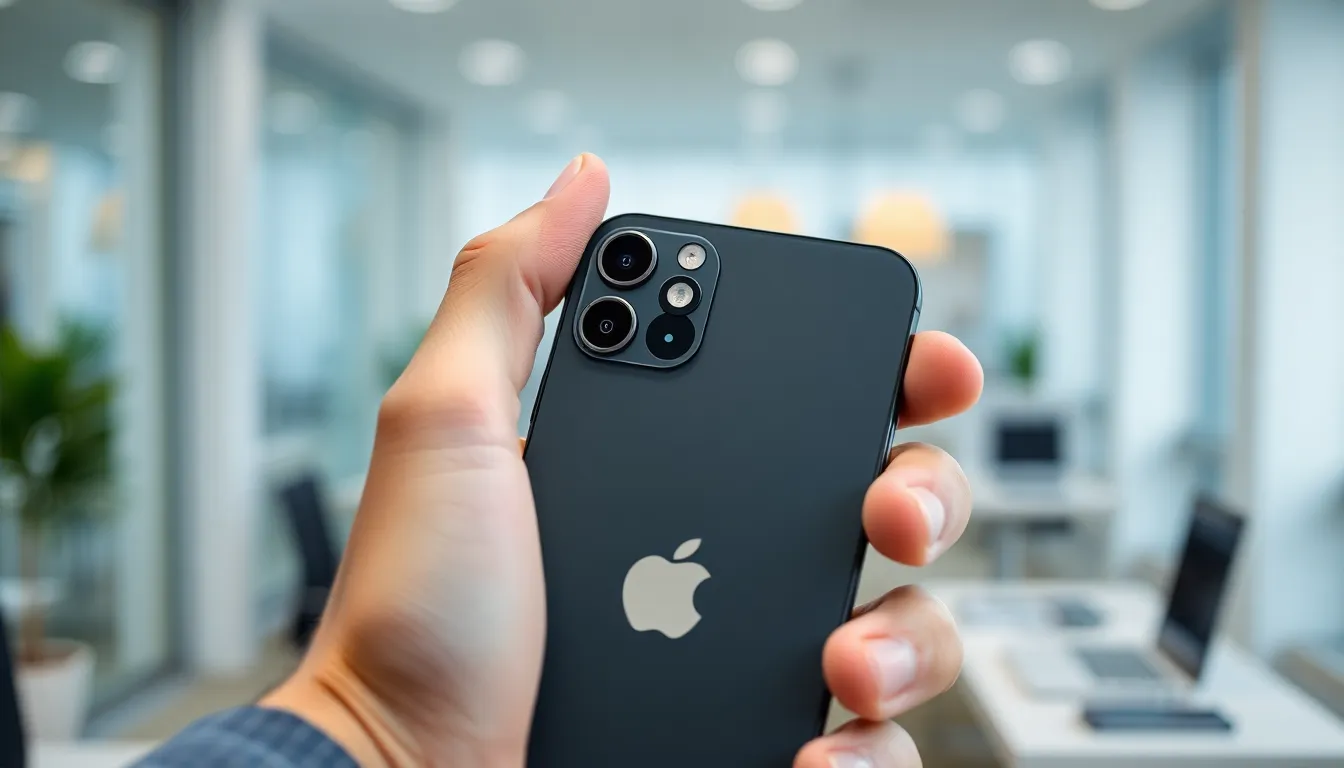
In a world where silence is golden and notifications can be downright embarrassing, knowing how to put your iPhone 15 on vibrate is essential. Imagine a meeting where your phone decides to serenade everyone with your favorite ringtone. Awkward, right? Fear not, because mastering the art of vibration is easier than finding the perfect meme to share.
With just a few taps, your iPhone can go from loud and proud to discreet and subtle. Whether you’re in a crowded café or sneaking into a movie, this guide will help you navigate the settings like a pro. Get ready to embrace the quiet life and let your phone do the vibrating while you keep your cool.
Understanding Vibrate Mode
Vibrate mode allows the iPhone 15 to alert users without emitting sound. This feature is crucial in various situations, helping avoid distractions and maintaining a low profile.
What Is Vibrate Mode?
Vibrate mode refers to the silent setting that causes the device to vibrate instead of ringing. Users activate this mode to receive notifications discreetly. It’s useful during meetings, classes, or quiet environments. Vibrate mode relies on the device’s built-in vibration motor, which creates physical movement to alert users. This feature promotes communication without disruption.
Why Use Vibrate Mode?
Using vibrate mode prevents embarrassing situations where sounds could interrupt important moments. Users often find it beneficial in settings such as theaters, libraries, or quiet offices. It also allows for notifications to be received without disturbing others nearby. Many people appreciate having the option to control how they engage with their devices. Switching to vibrate mode fosters a more considerate atmosphere in social settings.
Steps To Put Your iPhone 15 On Vibrate

Putting the iPhone 15 on vibrate is essential for discreet notifications. Two main methods exist for enabling this feature.
Using the Ring/Silent Switch
The Ring/Silent switch sits on the left side of the iPhone 15. To activate vibrate mode, flip the switch downward towards the back of the device. An orange dot becomes visible when the phone is on silent. Notifications then only generate vibrations instead of ringing sounds. Use this method when needing an immediate silence option during meetings or gatherings. This physical switch allows for quick adjustments without navigating through menus.
Through Settings Menu
Accessing vibrate settings through the Settings menu offers additional options. Open the Settings app and select “Sounds & Haptics.” From here, toggle the “Vibrate on Silent” option to enable vibrations when the phone is muted. Adjust the “Ringer and Alerts” volume slider to set preferred vibrate intensity. Notifications for calls and messages will now only vibrate while on silent. Utilizing this method provides more control over how notifications are received in various situations.
Customizing Vibration Settings
Customizing vibration settings allows users to personalize their iPhone 15 experience, ensuring notifications are discreet yet recognizable.
Choosing Vibration Patterns
Users can select different vibration patterns for specific contacts or alerts. To do this, navigate to Settings and choose Sounds & Haptics. From there, tap on Ringtone and then Vibration. Various default patterns are available, or custom vibrations can be created by tapping on the screen. This personalization helps easily identify incoming calls or messages without looking at the device.
Setting Up Notifications
Managing notifications further enhances the vibrate experience. Users should go to Settings and select Notifications to see all apps. Each application allows customization of alert settings, which can be adjusted to vibrate only while in silent mode. By enabling “Vibrate on Silent,” users receive feedback without disruptive sounds, making communication smoother during various activities.
Troubleshooting Vibrate Issues
Vibrate mode issues can disrupt the user experience if not addressed. Several common problems may prevent the iPhone 15 from vibrating correctly.
Common Problems
Devices often fail to vibrate due to muted notifications. Sometimes, users forget to enable “Vibrate on Silent” in the settings. Issues with hardware, such as a malfunctioning Taptic Engine, may contribute. A user might notice the phone doesn’t buzz even when set correctly. In some cases, software updates can disrupt vibration settings, leading to unexpected behavior.
Solutions and Tips
To resolve vibrate issues, first check the Ring/Silent switch to ensure vibrate is activated. Next, confirm that “Vibrate on Silent” remains enabled in the Settings menu. If not functioning, restarting the device often solves glitches. Users should update their software to eliminate potential bugs. Checking individual app notification settings can ensure proper configuration. Lastly, a factory reset may restore vibrate functions for persistent problems.
Mastering the vibrate function on the iPhone 15 is essential for maintaining a respectful environment in various settings. Users can easily switch to vibrate mode using the Ring/Silent switch or through the Settings menu. This simple adjustment not only prevents distractions but also enhances communication by allowing users to receive alerts discreetly.
Personalizing vibration patterns further enriches the user experience, making it easier to identify important notifications. By staying informed about potential troubleshooting steps, users can ensure their device remains functional and effective. Embracing these tips will lead to a quieter and more considerate lifestyle with the iPhone 15.


